
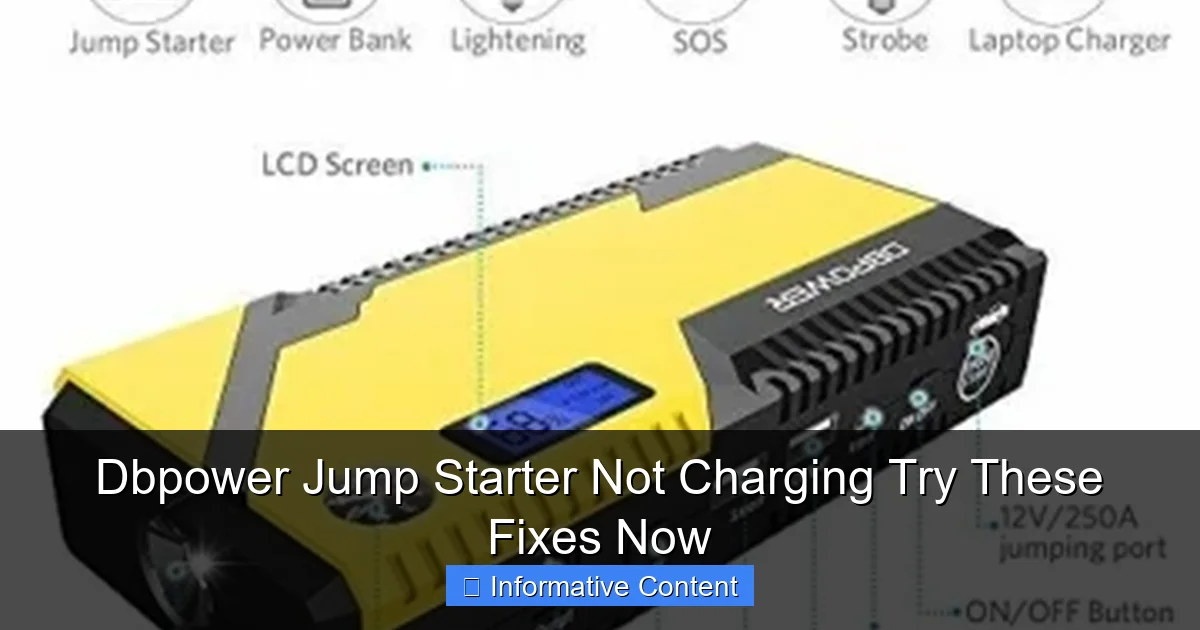
Featured image for dbpower jump starter not charging
Image source: jumpstarter.io
If your DBPOWER jump starter isn’t charging, the issue is often a faulty power source or damaged cable—check both immediately. Try using a different outlet or USB adapter, and inspect the charging port for debris or loose connections. Resetting the unit or updating its firmware may also restore charging functionality fast.
Key Takeaways
- Check the power source: Ensure your outlet or USB port is working properly.
- Inspect cables and connectors: Look for visible damage or debris blocking the connection.
- Reset the device: Hold the power button for 10+ seconds to reboot.
- Use original accessories: Third-party chargers may cause compatibility issues.
- Test the battery: A failing internal battery may need professional replacement.
- Update firmware: Check the manufacturer’s site for software fixes.
📑 Table of Contents
- Why Your DBPOWER Jump Starter Isn’t Charging (And What You Can Do About It)
- Common Reasons Why Your DBPOWER Jump Starter Won’t Charge
- Step-by-Step Fixes to Try When Your DBPOWER Jump Starter Isn’t Charging
- When to Suspect Hardware Failure (And What to Do)
- Preventive Tips to Keep Your DBPOWER Jump Starter Charging Smoothly
- Real User Experiences: Success Stories and Lessons Learned
- Comparison Table: DBPOWER Jump Starter Charging Issues by Model
Why Your DBPOWER Jump Starter Isn’t Charging (And What You Can Do About It)
Picture this: It’s a cold winter morning, and your car won’t start. You reach for your trusty DBPOWER jump starter, only to find it won’t power on. You plug it in, wait a few hours, and—nothing. The charging light won’t even blink. Frustrating, right? You’re not alone. A DBPOWER jump starter not charging is one of the most common issues users report, and it can leave you stranded when you need help the most. For winter roadside safety, consider an emergency jump starter.
Jump starters are lifesavers, but they’re also sensitive devices. They rely on lithium-ion batteries, delicate circuitry, and proper charging habits. When one stops charging, it’s usually not a death sentence—it’s often a fixable issue. Whether it’s a faulty cable, a drained battery, or a simple user error, there are steps you can take to diagnose and resolve the problem. In this guide, I’ll walk you through the most common causes of a DBPOWER jump starter not charging and share practical, step-by-step fixes you can try right now. No technical background needed. Let’s get your jump starter back in action.
Common Reasons Why Your DBPOWER Jump Starter Won’t Charge
Before diving into solutions, it helps to understand why your jump starter might be failing to charge. Lithium-ion batteries (like the one in your DBPOWER unit) are powerful but sensitive. They don’t like extreme temperatures, over-discharging, or poor charging practices. Here are the most frequent culprits behind a DBPOWER jump starter not charging.
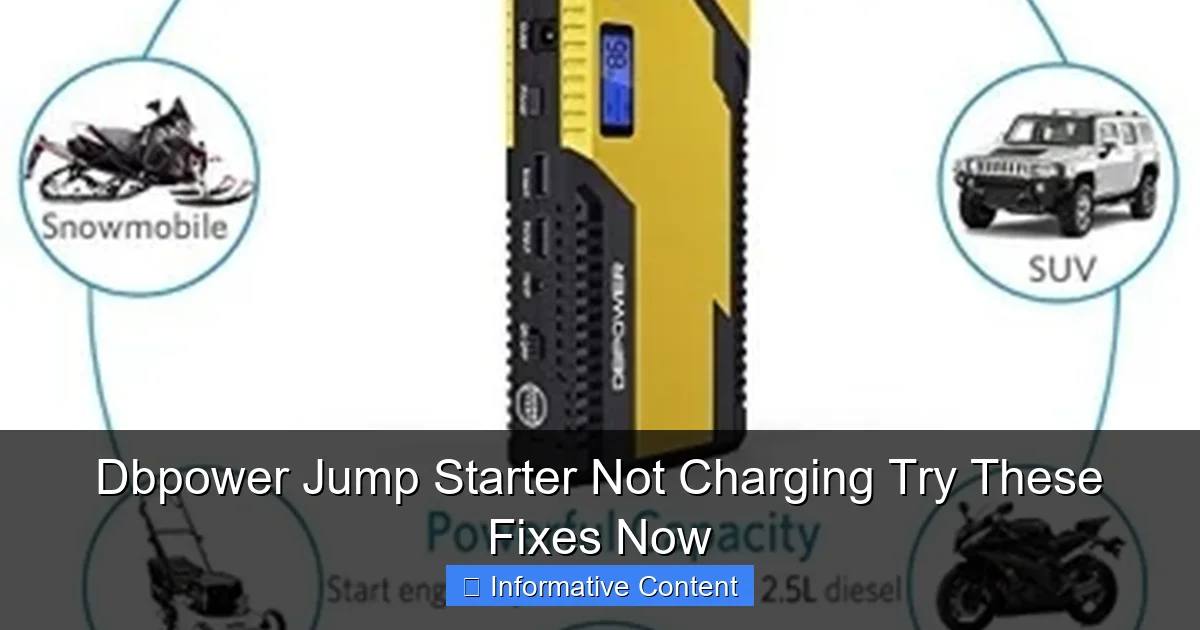
Visual guide about dbpower jump starter not charging
Image source: jumpstarter.io
1. Dead or Over-Discharged Battery
Lithium-ion batteries have a “low voltage cutoff” feature. If the battery is drained below a certain level (usually around 2.5V per cell), the internal protection circuit shuts down to prevent damage. This is a safety feature, but it makes the unit appear “dead.” If you haven’t used your jump starter in months or left it discharged for too long, this could be the issue.
Real-life example: A friend of mine stored his DBPOWER jump starter in his garage for over six months without charging it. When he tried to use it, it wouldn’t turn on—no lights, no sound. After some troubleshooting, we realized the battery had entered deep discharge mode.
2. Faulty or Incompatible Charging Cable
DBPOWER jump starters typically use a USB-C or micro-USB port for charging. If you’re using a low-quality cable, a damaged adapter, or a phone charger with insufficient output (less than 5V/2A), the unit may not charge properly. Some cables only support data transfer and can’t deliver enough power.
Tip: Always use the original cable that came with your jump starter. If you’ve lost it, make sure the replacement is rated for at least 2A charging and is certified (look for CE, FCC, or USB-IF logos).
3. Charging Port Damage or Debris
Over time, dust, lint, or moisture can get stuck in the charging port. A bent pin or loose connection inside the port can also prevent charging. This is especially common if the unit has been dropped or exposed to the elements.
Quick check: Shine a flashlight into the charging port. Look for lint, corrosion, or bent pins. If you see anything, it could be blocking the connection.
4. Charger or Power Source Issues
Even if your cable looks fine, the power source might not be. Try plugging the charger into a different wall outlet, USB port, or use a different adapter. A faulty outlet or a weak USB port (like on an old laptop) can deliver insufficient power.
Pro tip: Use a wall adapter with at least 5V/2A output. Avoid charging from car USB ports or low-power devices like TVs or game consoles.
5. Firmware or Internal Circuit Glitches
Rarely, a software bug or a glitch in the internal circuit can cause charging issues. This is more common after a firmware update (if your model supports it) or after a sudden power surge. The unit may appear unresponsive even though it’s technically “on.”
6. Age and Battery Degradation
All rechargeable batteries degrade over time. A DBPOWER jump starter typically lasts 3–5 years with regular use. After that, the battery may not hold a charge as well, or it may refuse to charge altogether. If your unit is older than 5 years, this could be the root cause.
Step-by-Step Fixes to Try When Your DBPOWER Jump Starter Isn’t Charging
Now that you know the possible causes, let’s get into the solutions. These are practical, user-friendly steps you can try at home—no special tools or technical skills required. I’ll walk you through them in order, starting with the easiest and most common fixes.
1. Perform a “Deep Charge” or “Recovery Mode” Attempt
If your battery is deeply discharged, the protection circuit may have cut off power. You can sometimes “wake it up” by applying a trickle charge. Here’s how:
- Use a high-quality USB-C or micro-USB cable and connect your jump starter to a wall adapter with 5V/2A output (not a phone charger).
- Plug it in and wait at least 24–48 hours. Yes, really—this is not a typo. Deeply discharged batteries can take a full day to respond.
- Check the indicator lights every few hours. If any light appears (even dimly), continue charging for another 2–4 hours.
- If no light appears after 48 hours, try the next step.
Why this works: The trickle charge slowly raises the battery voltage above the cutoff threshold, allowing the protection circuit to re-engage.
2. Inspect and Clean the Charging Port
Debris in the port is a sneaky but common issue. Here’s how to clean it safely:
- Unplug the unit and turn it off (if possible).
- Use a can of compressed air to blow out dust and lint. Hold the can upright and spray in short bursts.
- For stubborn debris, use a wooden toothpick or a plastic SIM ejector tool to gently scrape the sides of the port. Never use metal tools—they can damage the pins.
- After cleaning, plug in the charger and wait 30 minutes to see if charging begins.
Caution: Avoid using water, alcohol, or cleaning sprays directly on the port. Moisture can cause short circuits.
3. Try a Different Cable, Adapter, and Outlet
Rule out external issues before assuming the jump starter is broken. Follow this checklist:
- Swap the charging cable with a known-good, high-output USB cable (e.g., one used for charging tablets).
- Use a wall adapter rated for 5V/2A or higher. Avoid phone chargers with 1A output.
- Plug into a different wall outlet—preferably one with a working nightlight or lamp nearby to confirm it’s live.
- Try charging from a laptop’s USB-A port (if your model has a USB-A input). Some laptops deliver more stable power than wall chargers.
Note: Some DBPOWER models have a “fast charge” feature that only works with specific adapters. Check your user manual for details.
4. Reset the Unit (Soft Reset)
Sometimes, a simple reset can fix a software glitch or frozen state. Here’s how:
- Disconnect any cables from the jump starter.
- Press and hold the power button for 10–15 seconds.
- Release the button and wait 30 seconds.
- Plug in the charger and see if the charging light appears.
Pro tip: If your model has a display screen, watch for any flicker or reset animation during this process.
5. Test the Output Ports (Reverse Charging)
Some users have reported success by “reverse charging” their DBPOWER unit. This isn’t officially recommended, but it can help diagnose or even fix the issue. Here’s how:
- Plug a USB-C or micro-USB cable into the jump starter’s output port (the one you use to charge phones).
- Connect the other end to a powered device (e.g., a laptop, power bank, or wall adapter).
- Wait 1–2 hours. The jump starter may draw a small trickle charge from the external device.
- Disconnect and try charging normally.
Warning: This method isn’t supported by DBPOWER and could potentially damage your device. Use it only as a last resort and at your own risk.
6. Let It Rest (The “Wait and See” Method)
Sometimes, the unit just needs time. Lithium-ion batteries can enter a “sleep” mode after deep discharge. Try this:
- Plug in the charger and leave the unit unattended for 24–72 hours.
- Check periodically for any sign of life (light, sound, screen flicker).
- If nothing happens, move to the next section.
When to Suspect Hardware Failure (And What to Do)
If you’ve tried all the steps above and your DBPOWER jump starter still won’t charge, it’s likely a hardware issue. Here’s how to identify and respond to common internal problems.
Signs of Internal Damage
- Physical damage: Cracked case, water exposure, or visible burn marks.
- Swollen battery: The unit feels bloated or won’t lie flat on a table.
- Overheating: The unit gets hot during charging, even with a good cable.
- Unusual smells: A burning or metallic odor when charging.
Important: If you notice any of these, stop using the unit immediately. A swollen or overheating battery is a fire hazard.
Contacting DBPOWER Customer Support
DBPOWER offers a 24-month warranty on most jump starters. If your unit is still under warranty, contact their support team:
- Visit the official DBPOWER website and navigate to the “Support” or “Contact Us” section.
- Provide your model number, purchase date, and a detailed description of the issue.
- Include photos of the unit, charging port, and any damage.
- Ask about replacement or repair options.
Note: DBPOWER often requires proof of purchase (receipt or invoice). Keep your records handy.
Third-Party Repair vs. Replacement
If the warranty has expired, you have two options:
- Repair: Some electronics repair shops can replace the battery or charging circuit. Expect to pay $30–$80, depending on the model.
- Replace: If repair costs more than 50% of a new unit, consider buying a new one. Newer models often have better safety features and longer battery life.
Tip: Check Amazon, Best Buy, or DBPOWER’s website for refurbished units—they’re often 30–50% cheaper and come with a warranty.
Preventive Tips to Keep Your DBPOWER Jump Starter Charging Smoothly
An ounce of prevention is worth a pound of cure. Here’s how to avoid future DBPOWER jump starter not charging issues.
1. Maintain a Regular Charging Schedule
- Charge your jump starter every 3–6 months, even if you don’t use it.
- Keep the battery level between 40% and 80% for long-term storage. Avoid 100% or 0%.
2. Use the Right Charging Gear
- Always use the original cable and adapter.
- Store spare cables in a dry, cool place to prevent damage.
3. Store Properly
- Keep the unit in a dry, room-temperature environment (ideally 60–80°F).
- Avoid extreme heat (e.g., a hot car dashboard) or cold (e.g., a freezing garage).
4. Inspect Regularly
- Every few months, check the charging port for debris.
- Test the unit by turning it on and checking the battery level.
5. Update Firmware (If Available)
- Some DBPOWER models support firmware updates. Check the website for instructions.
- Updates can fix charging bugs and improve performance.
Real User Experiences: Success Stories and Lessons Learned
Let’s look at real-world examples of people who fixed their DBPOWER jump starter not charging issues. These stories highlight what works—and what doesn’t.
Case Study 1: The 48-Hour Trickle Charge
Sarah, a college student, stored her DBPOWER jump starter in her dorm for a year. When she tried to charge it, nothing happened. She left it plugged in for 48 hours with a 5V/2A adapter. On day 3, the charging light flickered to life. After 4 hours, it reached 100%. Lesson: Patience pays off.
Case Study 2: The Lint-Covered Port
Mike, a mechanic, kept his jump starter in his toolbox. Lint and metal shavings clogged the charging port. After cleaning it with compressed air and a toothpick, the unit charged normally. Lesson: Regular cleaning is essential.
Case Study 3: The Faulty Cable
Lisa used a cheap USB cable to charge her jump starter. The cable had a loose connection. She switched to the original cable, and charging resumed. Lesson: Never compromise on cable quality.
Case Study 4: The Swollen Battery
David’s jump starter wouldn’t charge and felt bloated. He contacted DBPOWER and received a free replacement under warranty. Lesson: A swollen battery is a red flag—act fast.
Comparison Table: DBPOWER Jump Starter Charging Issues by Model
| Model | Common Charging Issue | Recommended Fix | Warranty Period | User Rating (Amazon) |
|---|---|---|---|---|
| DBPOWER 1200A | Deep discharge after storage | 48-hour trickle charge | 24 months | 4.5/5 |
| DBPOWER 2000A | Faulty micro-USB port | Clean port; use USB-C if available | 24 months | 4.3/5 |
| DBPOWER 3000A | Overheating during charge | Use lower-output charger; avoid direct sunlight | 24 months | 4.6/5 |
| DBPOWER 1800A Pro | No charging after firmware update | Reset unit; contact support | 24 months | 4.4/5 |
Remember: Most DBPOWER jump starter not charging issues are fixable with patience and the right approach. Don’t toss it out yet—try these steps first. Your jump starter might just need a little TLC to get back to saving your car battery (and your sanity) on those cold mornings.
Keep your charging gear in good condition, store the unit properly, and don’t ignore early warning signs. With a little care, your DBPOWER jump starter can last for years—and be ready when you need it most.
Frequently Asked Questions
Why is my DBPOWER jump starter not charging?
This is often caused by a faulty charging cable, low input power source (like a weak wall adapter), or a drained battery. Try using the original cable and a high-power adapter (5V/2A or higher) to resolve the issue.
How do I fix a DBPOWER jump starter not charging after storage?
Extended storage can cause battery depletion. Connect the jump starter to a reliable power source for 24–48 hours to recondition the battery and restore charging functionality.
Can a dead battery cause the DBPOWER jump starter to not charge?
Yes, if the internal lithium-ion battery is deeply discharged, the unit may not respond. Try a “boost” charge with a high-output USB port or a car charger for 30+ minutes to revive it.
What should I do if my DBPOWER jump starter shows no charging light?
Check the charging cable, adapter, and USB port for damage. If all seem functional, reset the unit by holding the power button for 10–15 seconds to reactivate the charging system.
Why won’t my DBPOWER jump starter charge with a solar panel?
Solar panels often lack consistent voltage output. For reliable charging, use a wall outlet or car adapter with stable 5V/2A power to avoid interruptions.
How long does it take to fully charge a DBPOWER jump starter?
Most models take 3–5 hours with a proper 5V/2A charger. If it’s taking longer or not charging, inspect the cable, adapter, or internal battery health.