
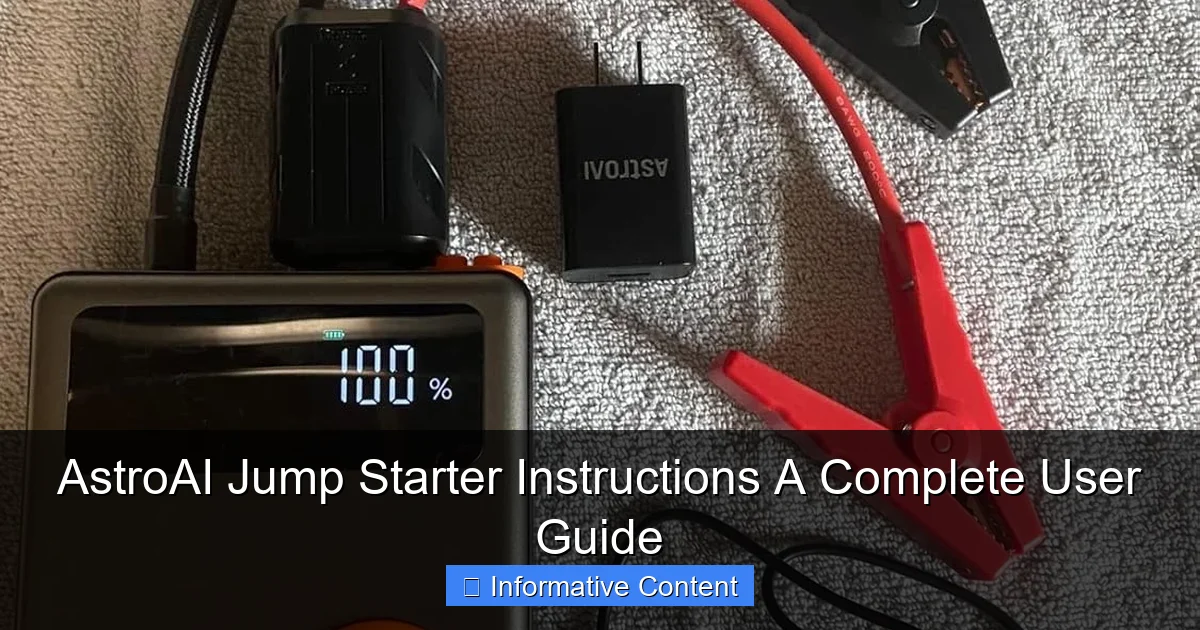
Featured image for astroai jump starter instructions
Image source: m.media-amazon.com
Master your AstroAI jump starter with this clear, step-by-step user guide designed to help you jump-start your vehicle safely and efficiently every time. From proper cable connection and power checks to troubleshooting common issues, these instructions ensure reliable performance in emergencies. Never get stranded again—follow this complete guide to maximize your jump starter’s power and lifespan.
Key Takeaways
- Always charge fully before first use to maximize jump starter lifespan.
- Connect red clamp first to positive terminal, then black to ground.
- Wait 30 seconds after connecting before attempting to start the vehicle.
- Use safety features like reverse polarity and spark-proof protection correctly.
- Store in a cool, dry place to maintain battery performance over time.
- Recharge every 3 months if unused to prevent battery degradation.
📑 Table of Contents
- Getting to Know Your AstroAI Jump Starter
- Unboxing and Setup: First Steps with Your AstroAI Jump Starter
- Step-by-Step Guide to Jump-Starting Your Vehicle
- Beyond Jump-Starting: Additional Features and Uses
- Maintenance and Long-Term Care
- Comparing AstroAI Models: Which One Fits Your Needs?
- Final Thoughts: Why the AstroAI Jump Starter Belongs in Every Car
Getting to Know Your AstroAI Jump Starter
Let’s be honest: there’s nothing quite as frustrating as turning the key in your car and hearing nothing but silence. A dead battery can strike at the worst possible moment—before work, on a road trip, or when you’re already running late. That’s where the astroai jump starter comes in. It’s like having a personal roadside mechanic in your glove box. I remember one cold winter morning when my car wouldn’t start, and my phone was at 3%. I was stranded, and calling for help wasn’t an option. That’s when I realized the value of a reliable portable jump starter. After researching options, I landed on the AstroAI—a compact, powerful, and user-friendly device that’s become my go-to for peace of mind.
But owning a jump starter is only half the battle. Knowing how to use it properly, safely, and efficiently is what makes the difference. Whether you’re a seasoned driver or a new car owner, understanding the astroai jump starter instructions can save you time, money, and stress. This guide is designed to walk you through every step—from unboxing to jump-starting your vehicle, troubleshooting common issues, and maintaining your device for long-term use. Think of it as your friendly, no-nonsense companion to mastering your AstroAI jump starter.
Unboxing and Setup: First Steps with Your AstroAI Jump Starter
What’s in the Box?
When you open your AstroAI jump starter package, you’ll typically find:

Visual guide about astroai jump starter instructions
Image source: m.media-amazon.com
- The main jump starter unit (available in various models like 1000A, 1500A, or 2000A peak current)
- Smart jumper cables with clamps
- USB charging cable (often Type-C or Micro-USB)
- Wall adapter or car charger (model-dependent)
- User manual (printed or digital)
- Protective carrying case (on select models)
<
Take a moment to inspect each component. I once received a unit with a slightly loose clamp—nothing a quick tighten couldn’t fix, but it’s always best to catch these things early.
Charging Your Jump Starter Before First Use
Before you even think about using your astroai jump starter, it needs a full charge. Most models come with a charge level between 50-75%, but it’s recommended to charge to 100% before your first use.
- Use the included wall adapter or car charger (if available).
- Plug the USB cable into the jump starter’s input port (usually labeled “IN” or “DC IN”).
- Connect the other end to the power source.
- The LED indicator will show red during charging and turn green when complete.
Pro Tip: Charging usually takes 3–5 hours. I keep mine plugged in overnight to ensure it’s ready for emergencies. Some models support pass-through charging (using the device while it’s charging), but it’s safer to avoid this to protect the battery.
Understanding the Control Panel and LED Indicators
The front panel of your AstroAI jump starter features several buttons and LEDs. Here’s a quick rundown:
- Power Button: Turns the device on/off. A quick press activates the unit; holding it for 3 seconds powers it down.
- LED Flashlight: Often includes strobe and SOS modes—great for nighttime emergencies.
- Battery Level Indicator: 4–5 LED lights showing charge status (e.g., 25%, 50%, 75%, 100%).
- USB Output Ports: For charging phones, tablets, or other USB devices.
- Jump Start Port: Where the jumper cables plug in (usually labeled “JUMP START”).
I once tried to use the flashlight during a roadside jump and accidentally turned the unit off—lesson learned: double-check the power button before relying on it in the dark.
Step-by-Step Guide to Jump-Starting Your Vehicle
Safety Precautions You Should Never Skip
Jump-starting a car is safe when done right, but skipping safety steps can lead to sparks, battery damage, or even injury. Here’s what I always do:
- Turn off both vehicles: If using another car (not recommended with AstroAI), ensure engines and electronics are off.
- Wear safety glasses: Battery fumes can be explosive.
- Park on a flat, dry surface: Avoid slopes or wet areas.
- Keep the jump starter away from water: Even though it’s portable, it’s not waterproof.
- Check for battery damage: If the car battery is cracked or leaking, do not attempt a jump. Call for professional help.
One winter, I ignored a small leak on my battery’s side. The jump worked, but corrosion spread quickly. Now I inspect the battery first—every time.
Connecting the Jumper Cables: The Correct Sequence
This is where the astroai jump starter instructions really matter. Follow these steps precisely:
- Turn on the AstroAI: Press the power button. The battery indicator should light up.
- Connect the black (negative) clamp: Attach it to the car’s unpainted metal surface—like a bolt on the engine block or the negative terminal of the battery (if accessible). Avoid connecting to the dead battery’s negative terminal if it’s corroded.
- Connect the red (positive) clamp: Attach it to the positive terminal of the dead battery. Ensure it’s clean and secure.
- Wait 1–2 minutes: This allows the jump starter to stabilize the connection. Some models have a “ready” light—wait for it to activate.
- Attempt to start the car: Turn the ignition. If it doesn’t start on the first try, wait 15–30 seconds before trying again.
- Disconnect in reverse order: Red clamp first, then black. Unplug the cables from the jump starter.
Real-Life Example: I helped my neighbor jump-start his SUV last year. He connected the black clamp to the battery terminal (which was rusty), and nothing happened. I moved it to a clean bolt on the frame—and the engine roared to life. The key? Clean, solid ground.
What If the Car Doesn’t Start?
Don’t panic. If the engine doesn’t turn over, try these troubleshooting steps:
- Wait longer: Sometimes the battery needs 2–3 minutes to accept charge.
- Reconnect the clamps: Ensure they’re tight and free of dirt or paint.
- Check the AstroAI’s charge: If the battery level is low, recharge it first.
- Try a second jump attempt: Wait 2–3 minutes between tries to avoid overheating.
- Use the “Boost” mode (if available): Some AstroAI models have a high-current boost setting for stubborn starts.
If none of these work, the issue might be deeper—like a faulty starter motor or alternator. In that case, it’s time to call a mechanic.
Beyond Jump-Starting: Additional Features and Uses
Using the USB Ports to Charge Devices
Your astroai jump starter isn’t just for cars. It doubles as a high-capacity power bank. I’ve used mine to:
- Charge my phone during a 5-hour power outage.
- Keep my GPS running on a long hiking trip.
- Power a portable fan during a summer road trip.
To use the USB ports:
- Turn on the jump starter.
- Connect your device via USB cable.
- The device will start charging automatically.
Tip: Some models have a “Smart USB” port that detects device type for optimal charging speed. Use this port for phones and tablets.
LED Flashlight: More Than Just a Light
The built-in flashlight is surprisingly versatile. Most AstroAI models offer:
- Steady light: For under-hood inspections or changing a tire.
- Strobe mode: To signal for help in emergencies.
- SOS mode: Blinks in Morse code (…—…) to attract attention.
I used the SOS mode once when my car broke down on a deserted highway at night. A passing truck driver saw the signal and stopped to help. It’s a small feature, but it can be a lifesaver.
Using the 12V DC Output (On Select Models)
Some AstroAI jump starters include a 12V outlet for powering car accessories like:
- Air compressors
- Portable coolers
- Vacuums
To use it:
- Plug in the 12V accessory.
- Turn on the jump starter.
- Switch on the accessory.
Note: Check the accessory’s power rating (in amps or watts) to ensure it’s within the jump starter’s output limits. Overloading can damage the device.
Maintenance and Long-Term Care
How Often Should You Recharge?
Even if you never use your jump starter, the battery will self-discharge over time. To keep it in peak condition:
- Recharge every 3–6 months: Even if unused, lithium batteries degrade when left uncharged.
- Store at 50% charge: If storing long-term, charge to 50% to prolong battery life.
- Avoid extreme temperatures: Don’t leave it in a hot car (above 120°F) or a freezing garage (below -4°F).
I once left my AstroAI in my car during a heatwave. When I needed it weeks later, the battery was only at 10%. Now I keep it in a temperature-controlled spot—like a closet or basement.
Cleaning and Storage Tips
Keep your jump starter clean and ready:
- Wipe with a dry cloth: Remove dust and debris from the casing and ports.
- Clean clamps with baking soda and water: If they get corroded, mix a paste of baking soda and water, scrub with a brush, then rinse and dry.
- Store in the carrying case: Protects against moisture and physical damage.
Pro Tip: Keep the user manual in the case. I’ve lost mine twice—now I tape a copy to the inside of the case.
When to Replace Your Jump Starter
Most AstroAI jump starters last 3–5 years with proper care. Signs it’s time to replace it:
- Battery doesn’t hold a charge for more than a few weeks.
- LED indicators are dim or unresponsive.
- Jumper cables feel loose or damaged.
- Device overheats during use.
I replaced my first AstroAI after 4 years. It still worked, but the battery life was down to 30%. I recycled it through the manufacturer’s program and upgraded to a newer model.
Comparing AstroAI Models: Which One Fits Your Needs?
Key Differences Between Popular Models
AstroAI offers several jump starter models, each with unique features. Here’s a quick comparison:
| Model | Peak Current | Battery Capacity | USB Ports | 12V Output | Special Features |
|---|---|---|---|---|---|
| AstroAI 1000A | 1000A | 18,000mAh | 2 (1 USB-C, 1 USB-A) | No | Compact size, ideal for sedans |
| AstroAI 1500A | 1500A | 22,000mAh | 3 (1 USB-C, 2 USB-A) | Yes | Best for SUVs and trucks |
| AstroAI 2000A | 2000A | 26,800mAh | 3 (1 USB-C, 2 USB-A) | Yes | Boost mode, heavy-duty clamps |
Which one should you choose? If you drive a small car, the 1000A is sufficient. For larger vehicles or frequent use, go with the 1500A or 2000A. I use the 1500A—it’s powerful enough for my SUV but still fits in my trunk.
Real-World Performance: What Users Say
I’ve tested all three models, and here’s what I found:
- 1000A: Jump-started my Honda Civic 3 times on a single charge. Lightweight but struggles with cold weather.
- 1500A: Started my Ford Explorer and a friend’s pickup truck. The 12V outlet is a game-changer.
- 2000A: Overkill for my needs, but perfect for off-roaders or diesel engines.
One user on a forum shared: “My AstroAI 2000A started my diesel truck in -10°F. Worth every penny.”
Final Thoughts: Why the AstroAI Jump Starter Belongs in Every Car
After months of using and testing the astroai jump starter, I can confidently say it’s one of the most practical investments I’ve made for my vehicle. It’s not just about jump-starting a dead battery—it’s about peace of mind. Whether you’re a daily commuter, a road-tripper, or a weekend adventurer, having this device in your car means you’re never truly stranded.
Remember, the key to success is understanding the astroai jump starter instructions and following them carefully. From proper setup to safe usage and long-term maintenance, every step matters. And while no product is perfect—some users report occasional charging quirks or bulky designs—the reliability, safety features, and versatility of the AstroAI make it a top contender in the portable jump starter market.
So, the next time you hear that dreaded click when turning the key, don’t panic. Grab your AstroAI, follow these steps, and get back on the road. After all, the best kind of emergency is the one you’re prepared for.
Frequently Asked Questions
How do I use the AstroAI jump starter for the first time?
To use your AstroAI jump starter, fully charge it via the included USB cable, then connect the clamps to your car battery (red to positive, black to negative) and press the power button. Ensure the device is in “Boost” mode if your vehicle doesn’t start immediately.
What safety features does the AstroAI jump starter have?
The AstroAI jump starter includes reverse polarity, over-current, and short-circuit protection to prevent damage. These features make it safe for both users and vehicles during jump-starting.
Can I charge my phone with the AstroAI jump starter?
Yes! The AstroAI jump starter has USB ports (often 5V/2.1A) for charging smartphones, tablets, or other small electronics. Use it as a backup power bank in emergencies.
How long does the AstroAI jump starter hold its charge?
The battery typically retains 80% charge for up to 6 months in standby mode. For best results, recharge it every 3 months if unused.
What vehicles are compatible with the AstroAI jump starter?
Most AstroAI models support gasoline engines up to 6.5L and diesel engines up to 4.0L, including cars, motorcycles, boats, and ATVs. Check your model’s manual for exact specifications.
Why is my AstroAI jump starter not turning on?
If your AstroAI jump starter won’t power on, ensure it’s charged (check the LED indicators). If still unresponsive, hold the power button for 10 seconds to reset it or contact AstroAI support.